Please note 'compatibility mode' typically needs to be selected/enabled when embedding Termageddon policy codes into a Go High Level website. This is explained in more detail in step #7 below:
1. Log into app.gohighlevel.com
2. Click 'sites' in the left hand side (if you have an agency account, you first need select the respective account)
3. Click 'websites':
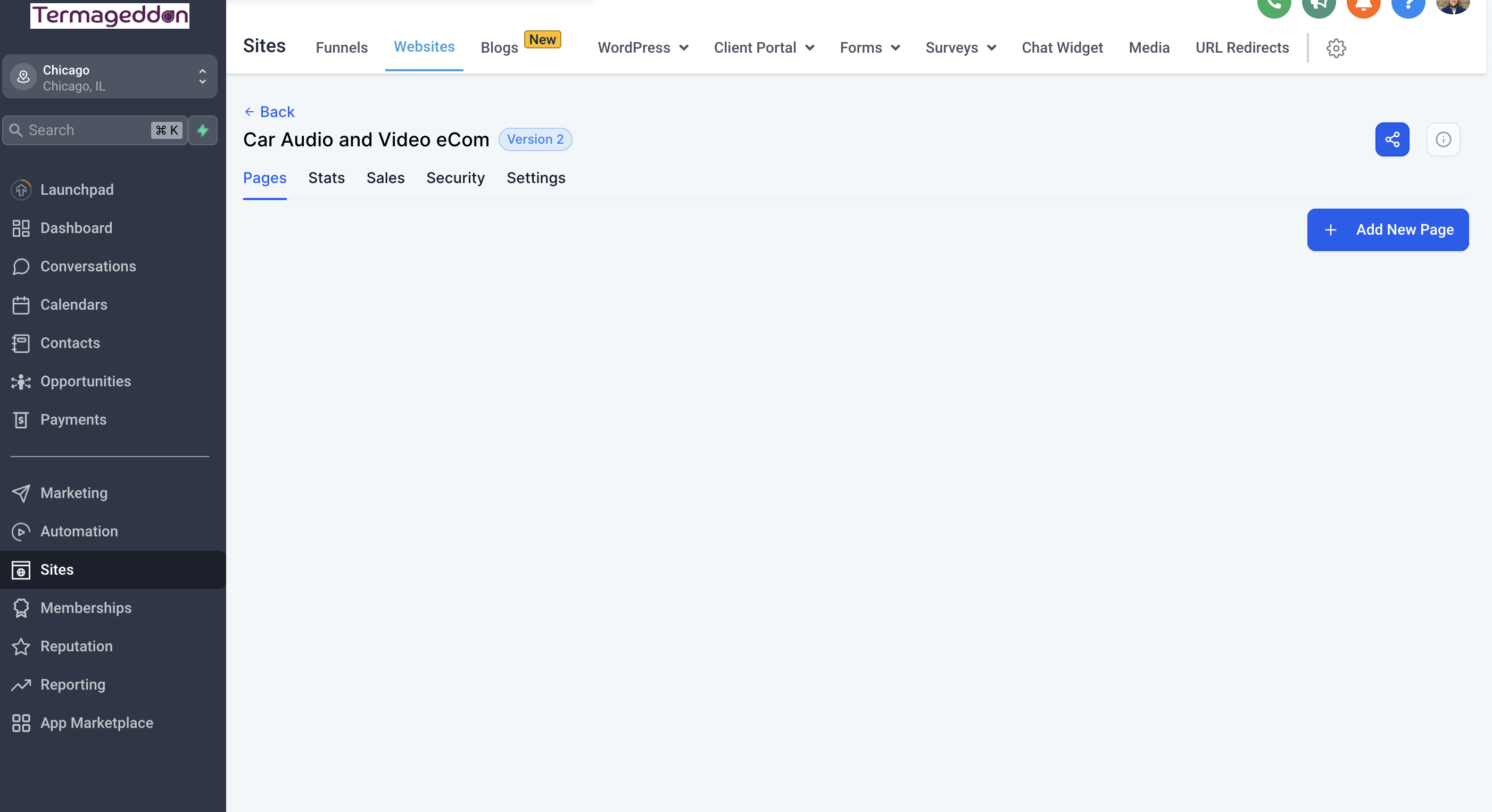
4. Click "add new page" and follow the steps to name your page (for example "Privacy Policy"
5. Go into the page editor
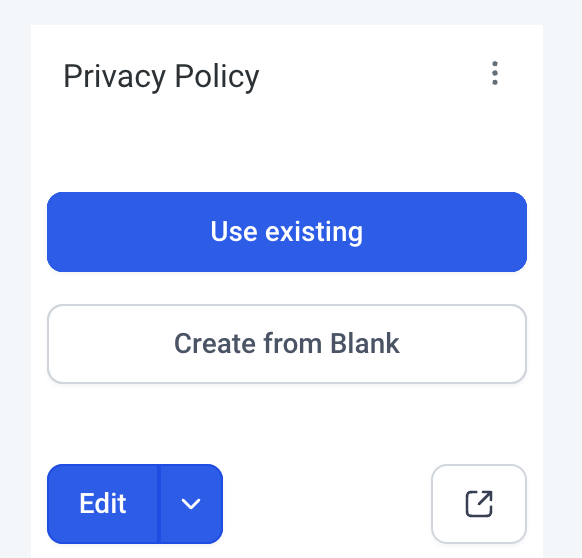
6. Add a row, and then add the 'Code' block
7. Paste in the Termageddon embed code (with Compatibility Mode enabled).
- To enable Compatibility Mode, log into your Termageddon account, click into your license, click 'view embed code' for the respective policy, click 'advanced' and select/enable 'compatibility mode'. Copy this new code and past this in via the Go High Level "Code" Element.
8. Test the page to ensure the policy loads.
- If it does not, try adding an Element just above the embed code area. For example you can add a 'Heading' embed code, title it by the policy name (such as "Privacy Policy") and used the Termageddon 'advanced' button (referenced in step #7 above) to select the option to 'hide policy title' from not showing via the embed code. Test again and this should resolve any issues.
Was this article helpful?
That’s Great!
Thank you for your feedback
Sorry! We couldn't be helpful
Thank you for your feedback
Feedback sent
We appreciate your effort and will try to fix the article