Step #1 - Ask the new license owner to register and purchase a new subscription:
1. If the new owner does not have a Termageddon account, they will need to register for a Termageddon account and verify their email.
2. In their dashboard, in the top right corner, click your profile (initials), then click "Billing".
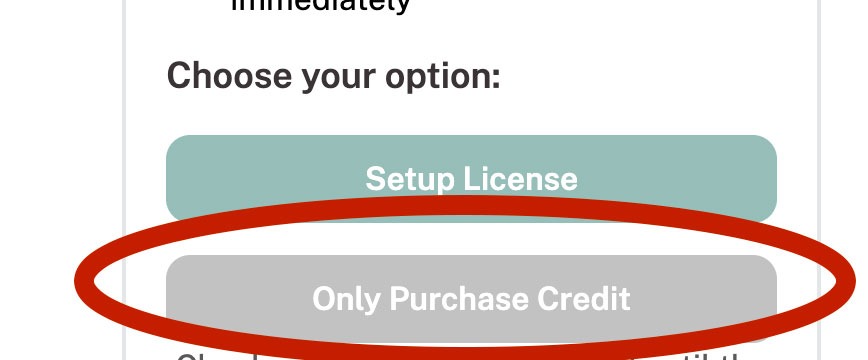
3. Click 'buy license'. You will then follow the steps to add your payment information and purchase a single license subscription. Be sure to select "Only purchase credit" (this is what allows Termageddon to migrate the license from the previous owner's account into the new account and assign it to your new subscription).
Step #2 - Sharing the license
Then the license should be shared with them from the original ownership account following these steps:
Login to your account at https://policies.termageddon.com.;
Click the license you want to share on your Dashboard.;
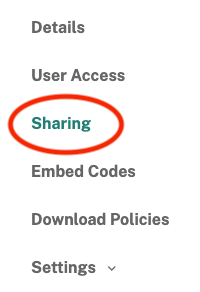
Click “Sharing” here:
Under “Share via Email”, enter the email address to receive the invite and click “Send Invite”:
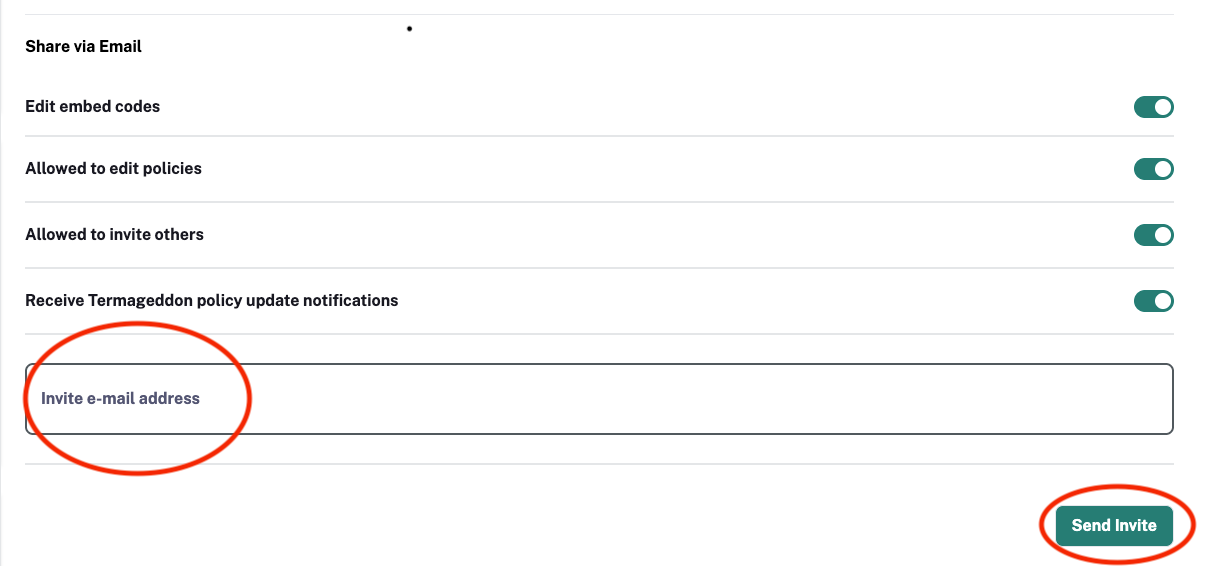
This invite must be accepted before the license can be transferred.
Once the invite is accepted, the original license owner will have the option to transfer the license to the account with which they shared the license originally.
Step #3 - Transferring the license
The owner should now follow these steps to transfer the license:
Login to your account at https://policies.termageddon.com.;
Click the license you want to transfer from your Dashboard.;
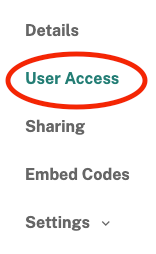
Click “User Access” on the left:
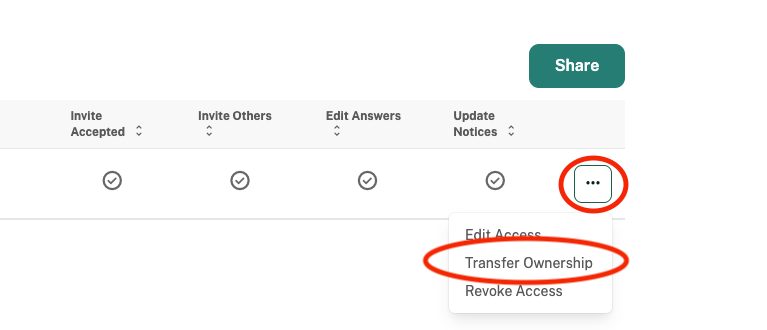
Click the “...” all the way to the right of the user that will receive the license.;
From the menu, select “Transfer Ownership”:
In the popup, click “Transfer Ownership”:
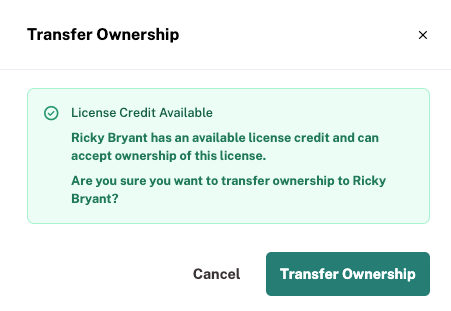
The license has now been transferred to the new owner, and is shared with the original owner. The new owner can now remove the original owner from the license, if needed.
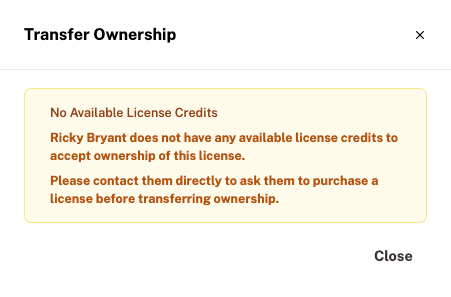
Note: If the new owner has not yet purchased a license credit, you will instead see this message in the popup:
Was this article helpful?
That’s Great!
Thank you for your feedback
Sorry! We couldn't be helpful
Thank you for your feedback
Feedback sent
We appreciate your effort and will try to fix the article